Add custom templates
Please add a folder before adding a custom template. Please use the design labels provided by the system to edit the custom template.
Ⅰ. Design labels
| Name | Description |
| {{image1}}...{{image16}} | Tag used for the images in listing description For example: <img src="{{image1}}" /> |
| {{title}} | Tag used for the title in listing description |
| {{titledescription}} | Tag used for the title in product description |
| {{description}} | Tag used for item description |
| {{titledescription1}} | Tag used for the title in product description 1 |
| {{description1}} | Tag used for item description 1 |
| {{titledescription2}} | Tag used for the title in product description 2 |
| {{description2}} | Tag used for item description 2 |
| {{titledescription3}} | Tag used for the title in product description 3 |
| {{description3}} | Tag used for item description 3 |
| {{titlepaymentterms}} | Tag used for the title of payment terms |
| {{paymentterms}} | Tag used for payment terms |
| {{titleshippingterms}} | Tag used for the title of shipping terms |
| {{shippingterms}} | Tag used for shipping terms |
| {{titlesalesterms}} | Tag used for the title of sales terms |
| {{salesterms}} | Tag used for sales terms |
| {{titlecontactus}} | Tag used for the title of contact us |
| {{contactus}} | Tag used for contact us |
| {{titleaboutus}} | Tag used for the title of about us |
| {{aboutus}} | Tag used for about us |
Ⅱ. Add custom templates
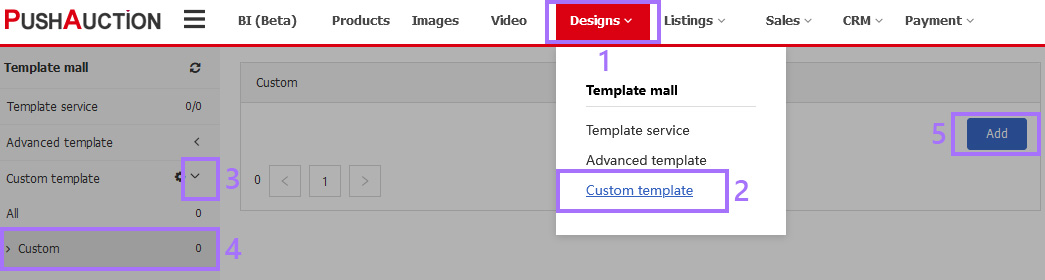
Step 1: Click [Designs] > [Custom templates] > Select the desired folder > [Add];
Step 2: Input the template name > Select folder > Edit HTML > Click [Preview] if necessary > [Save].

Article Number: 1606
Author: Sun, Sep 20, 2020
Last Updated: Wed, Mar 23, 2022
Online URL: https://kb.pushauction.com/article.php?id=1606