Ad scheduling rule
Watch the video – Auto reply to messages
Overview: Set campaigns to automatically pause during selected time periods and run during the rest, so you can reduce ad spend during low‑conversion hours.
1. Create an ad scheduling rule
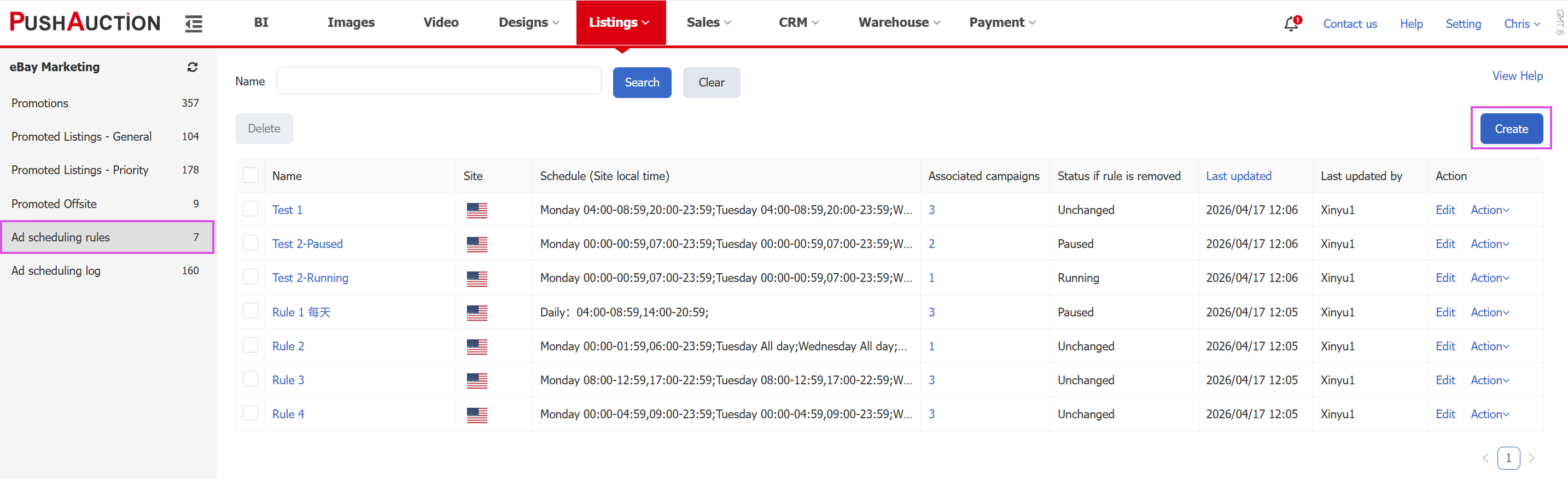
Step 1: Go to Listings > eBay Marketing > Ad scheduling rules, then click Create.
Step 2:
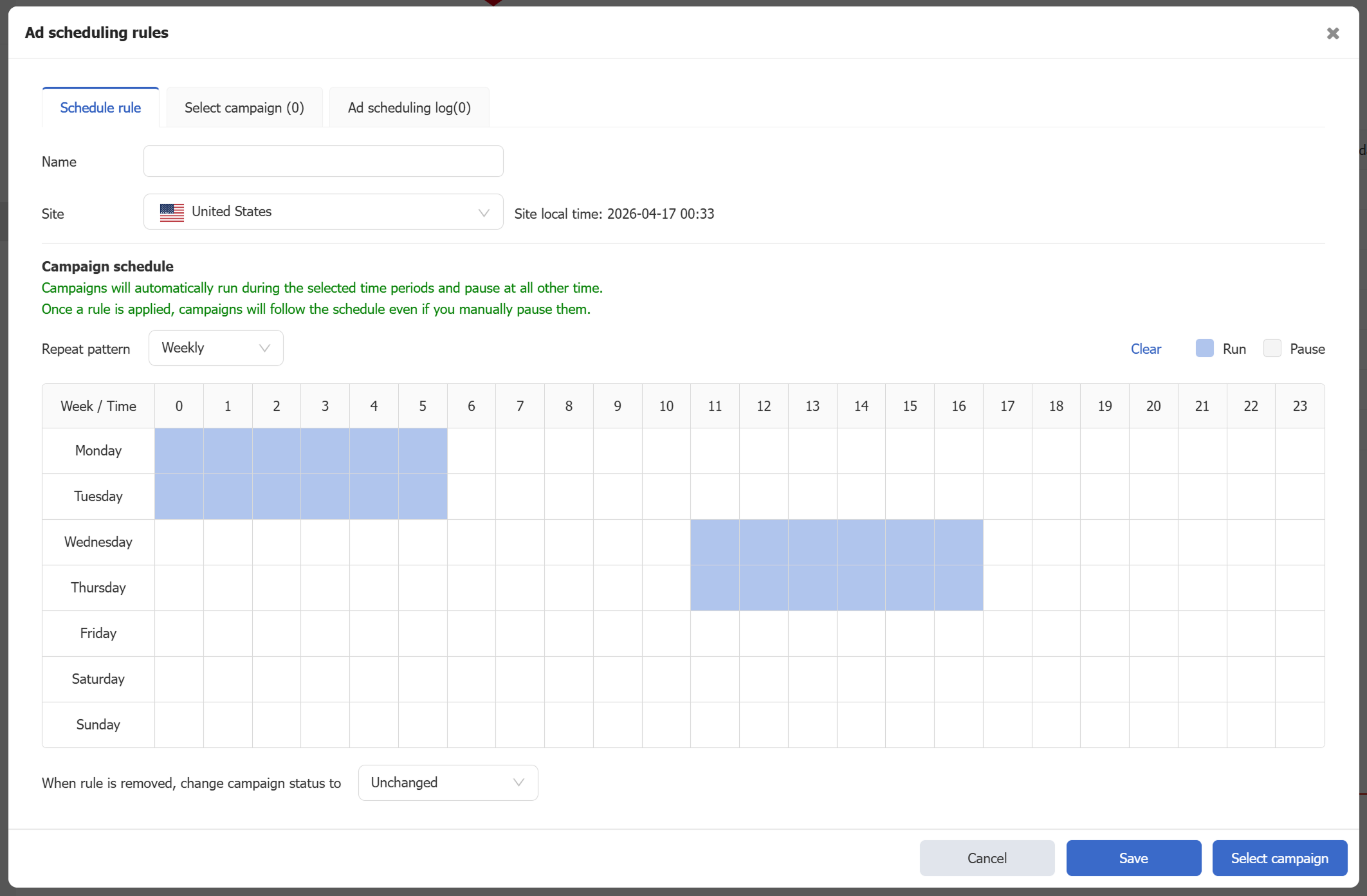
1) Enter a rule name and select the site.
2) Choose the repeat pattern (Weekly / Daily).
3) Set the campaign run time: drag across the grid to select the time blocks when campaigns should run. The blue cells indicate active time (click or drag again to clear a selection).
4) Define how campaign status should change when this rule is removed.
5) Click Select campaigns to continue.
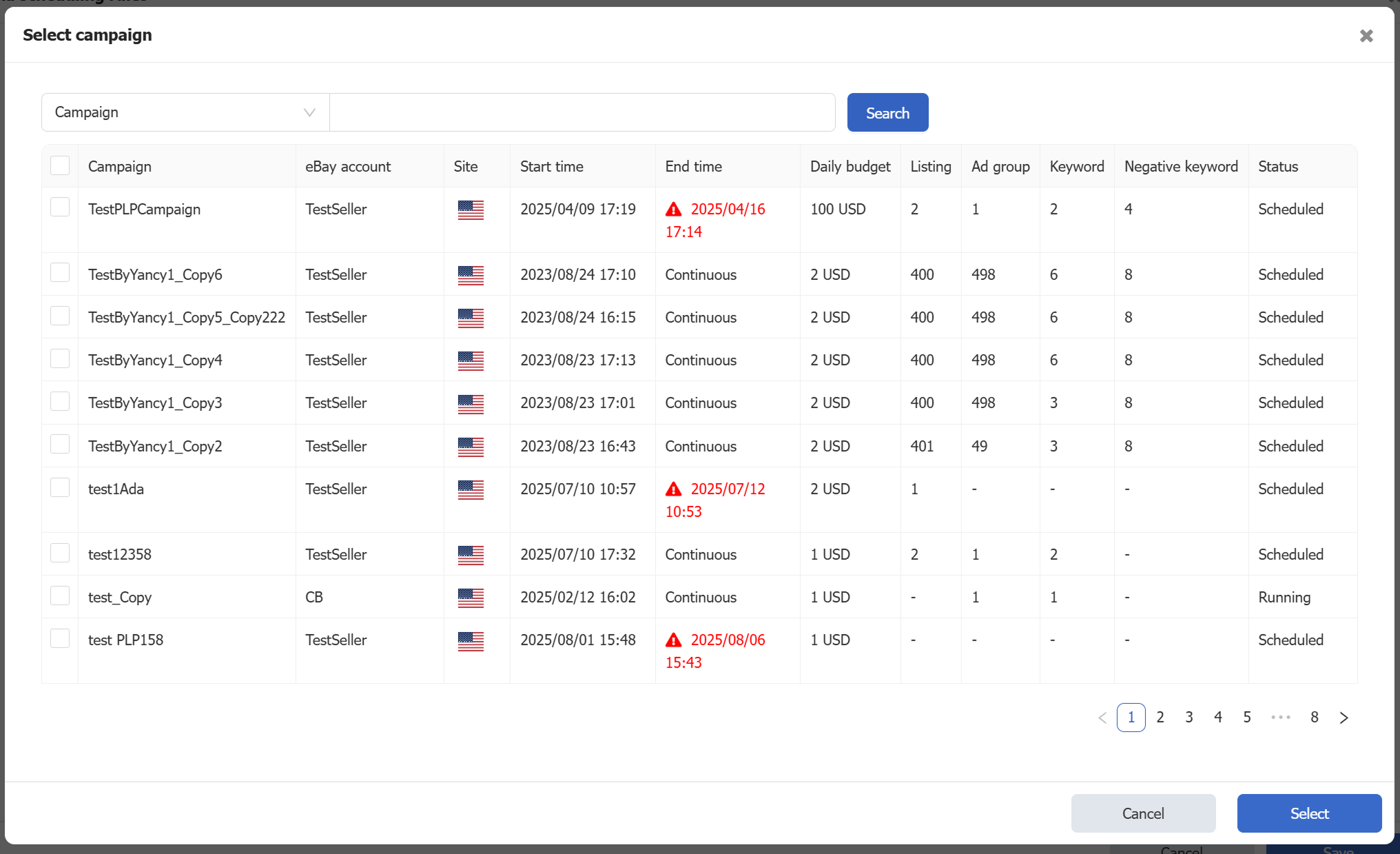
Step 3: Select campaigns.
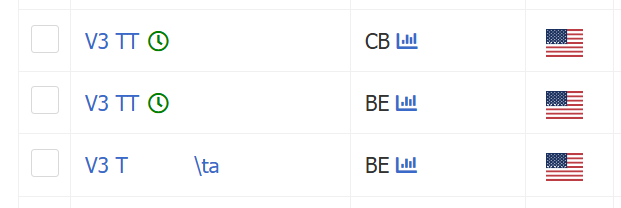
Campaigns with an ad scheduling rule applied are marked with a green clock icon.
2. Apply or remove rules in bulk
In the PLP campaign management page, select multiple campaigns that don’t yet have a rule applied, then click Options > Apply ad scheduling rule to apply a rule in bulk.
- Note: Bulk actions support campaigns from the same site only.
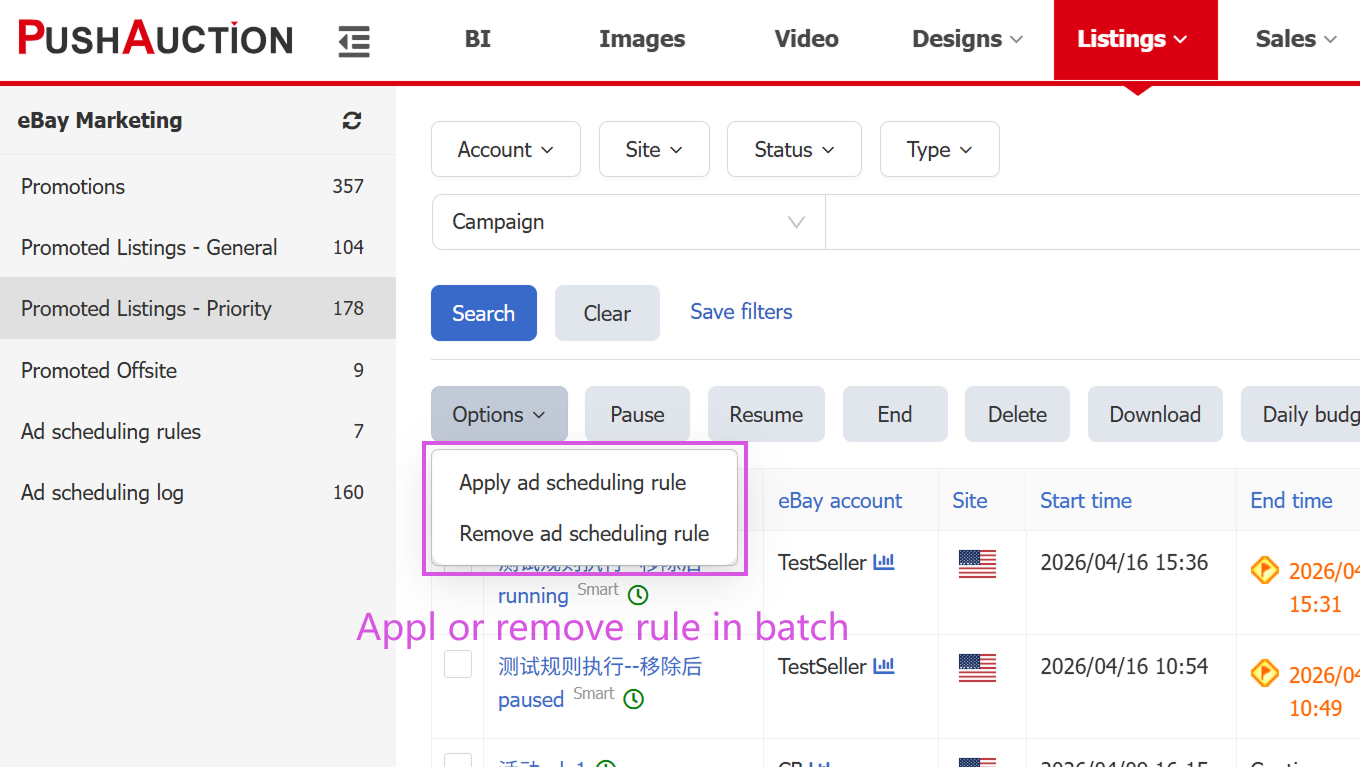
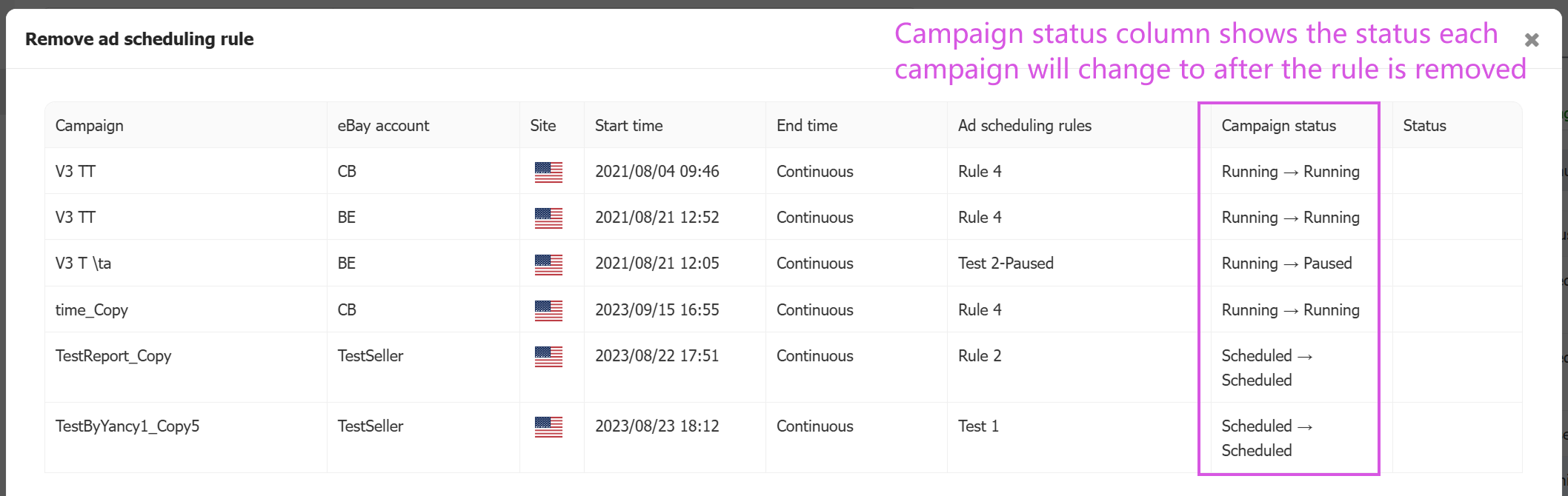
To remove a rule in bulk, select multiple campaigns that already have a rule, then click Options > Remove ad scheduling rule.
- Note: The Campaign status column shows the status each campaign will change to after the rule is removed. This behavior is configured on the rule setup page.
3. Review campaign start/stop history
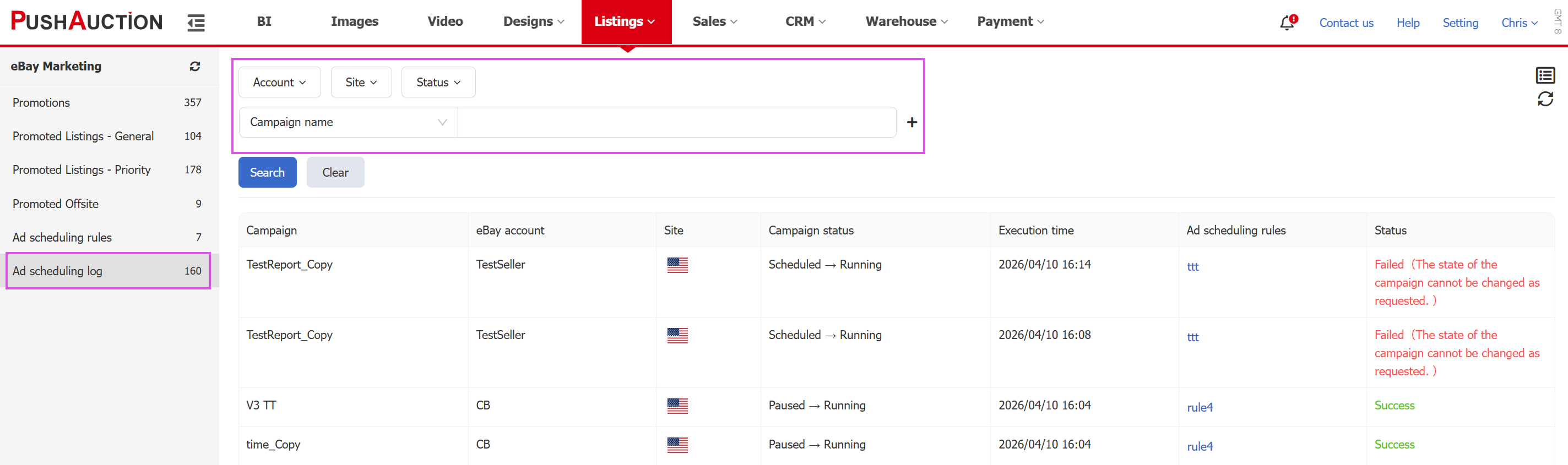
Go to Listings > eBay Marketing > Ad scheduling log.
You can filter by account, site, and status to review when rules started and stopped campaigns.
Article Number: 2018
Author: Thu, Apr 16, 2026
Last Updated: Fri, Apr 17, 2026
Online URL: https://kb.pushauction.com/article.php?id=2018