Bulk manage listings for PLG / PLP Campaigns
Feature Overview: You can manage campaigns in bulk directly from the listing page without going to the Ads Management pages. This allows you to quickly assign, remove, or switch listings between campaigns, improving operational efficiency.
This guide includes two parts:
Ⅰ. Bulk management of PLG (Promoted Listings General) campaigns
Ⅱ. Bulk management of PLP (Promoted Listings Priority) campaign
Ⅰ. Bulk Manage PLG Campaigns in Listing View
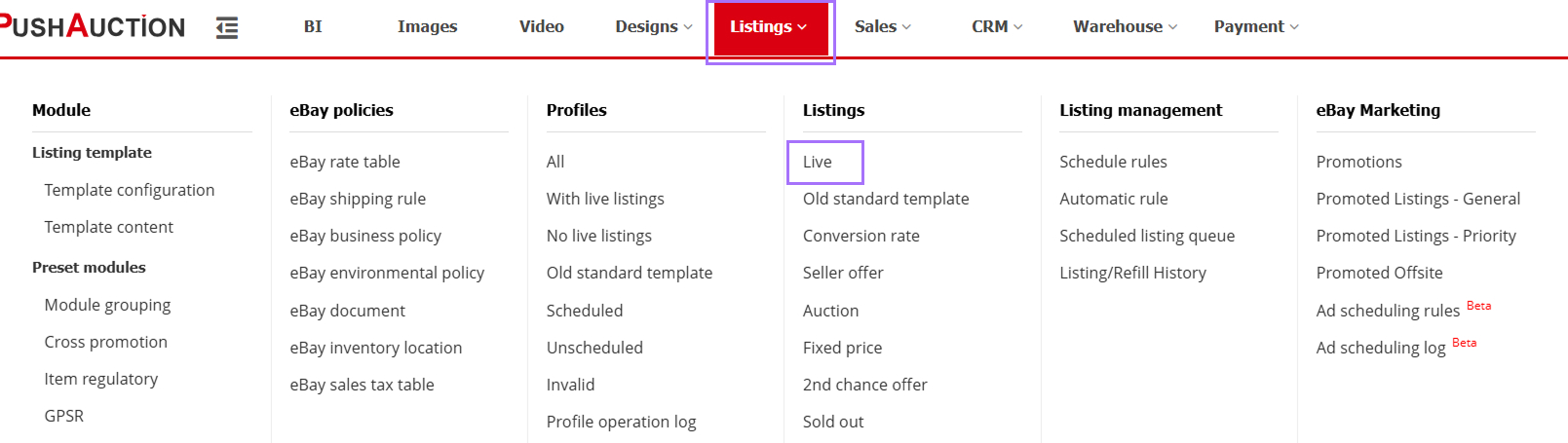
Step 1: Go to 【Listings】 > 【Live】 to open the listing page.
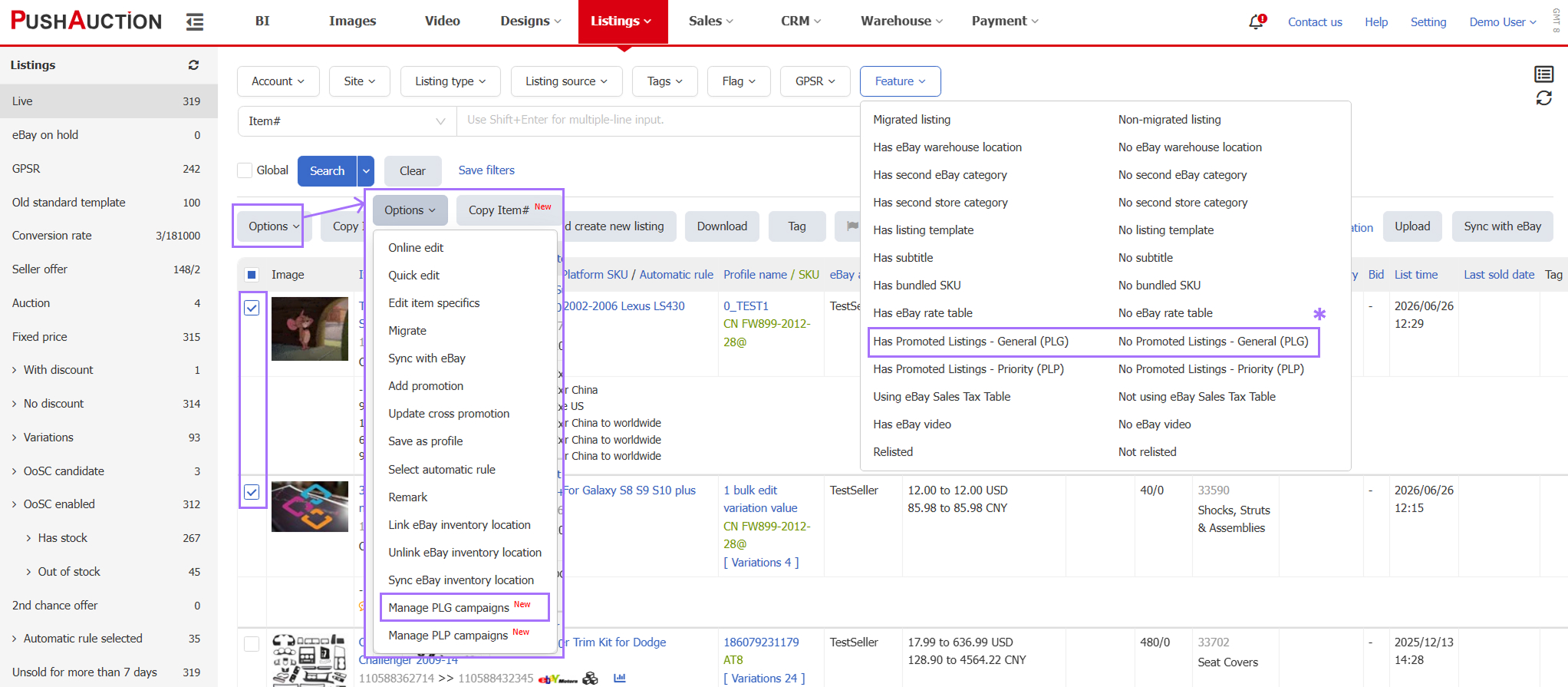
Step 2: Select listings > click 【Options】 > 【Manage PLG Campaigns】
*Tip: Use the filter under 【Has / No PLG】 to quickly identify listings with or without active campaigns.
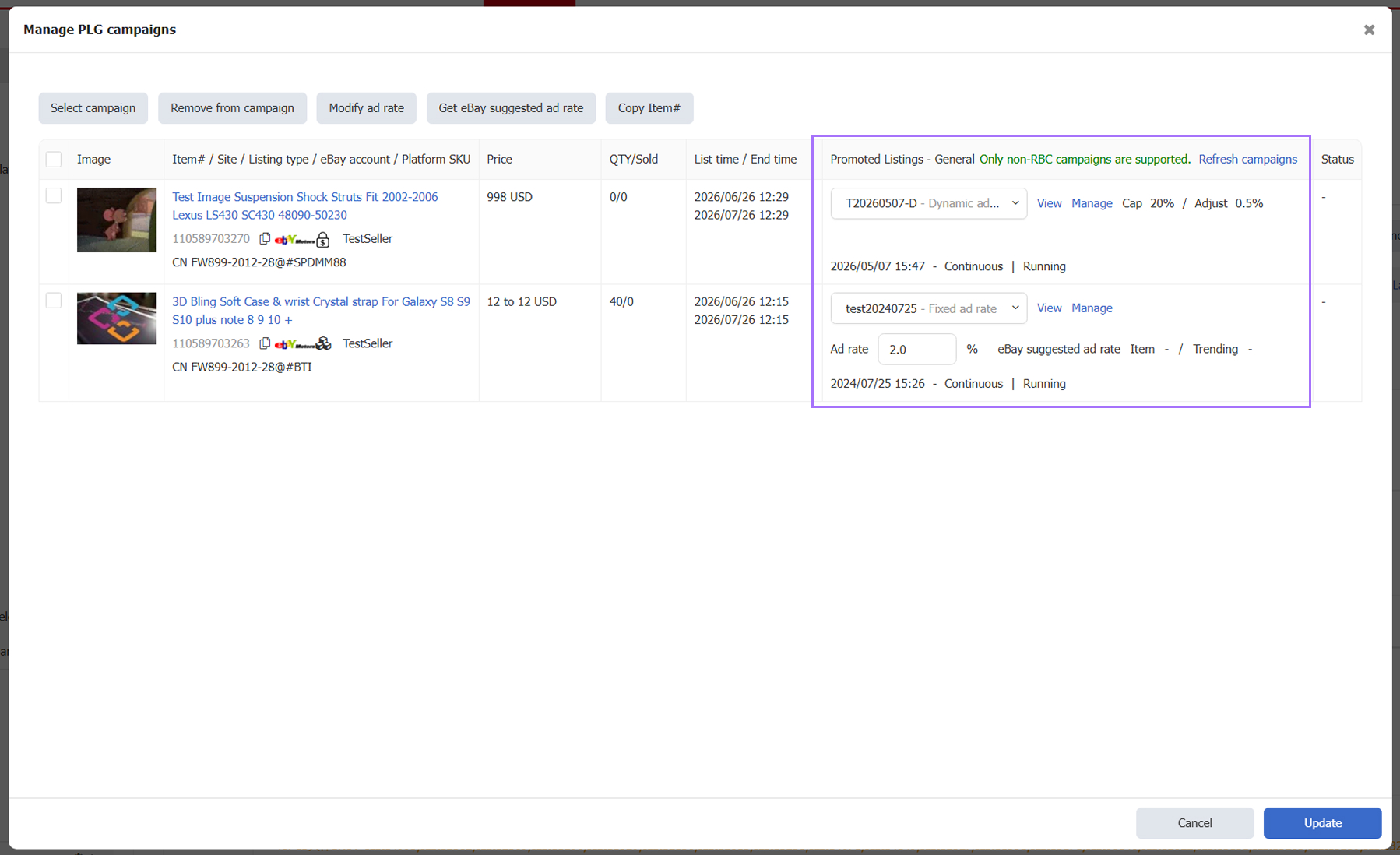
Step 3: Assign a campaign for each listing.
RBC campaigns are automatically assigned by eBay and do not support manual assignment
Existing Campaign Behavior
- Existing campaign will be automatically displayed when opening the dialog
- Selecting 【-- Select --】 will remove the listing from the campaign upon update
- Selecting another campaign will switch the listing (remove old campaign and assign new one)
Ⅱ. Bulk Manage PLP Campaigns in Listing View
Step 1: Go to 【Listings】 > 【Live】 to open the listing page.
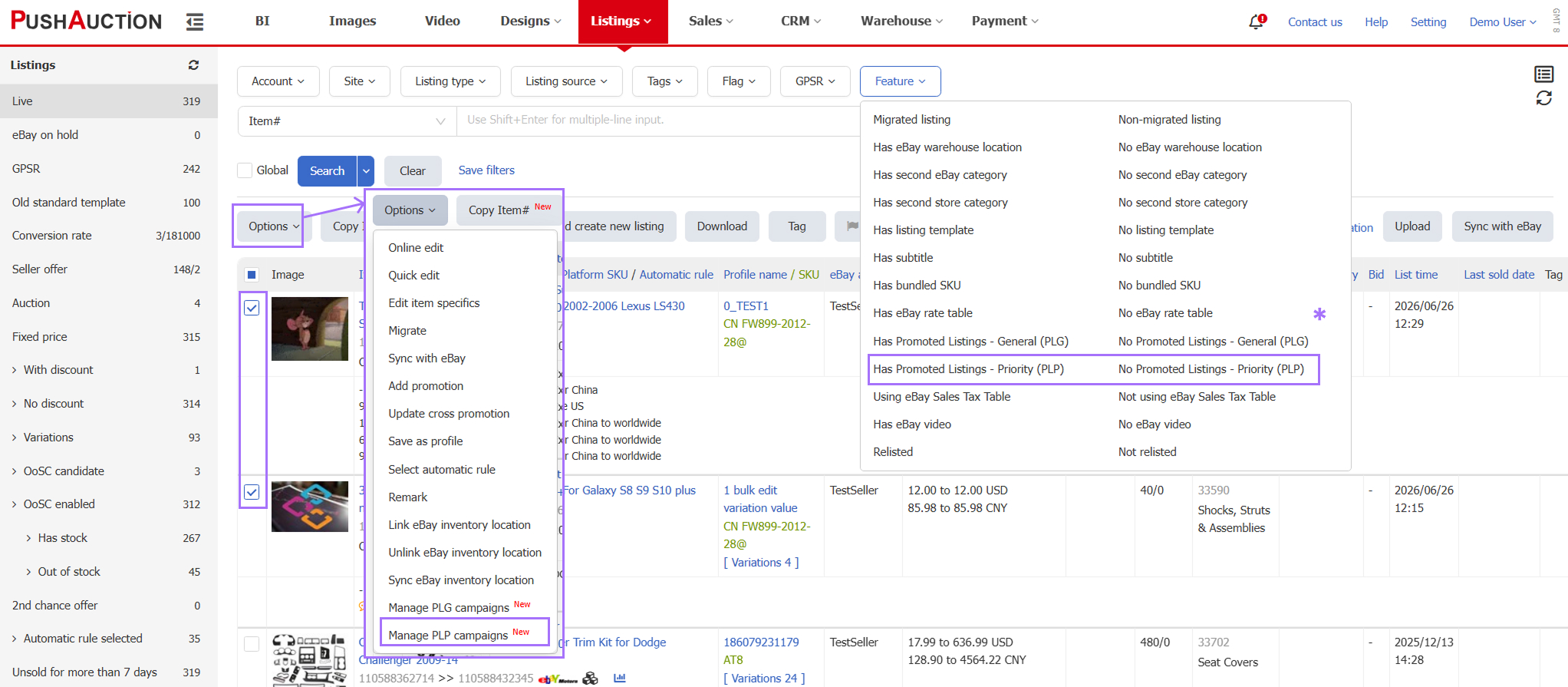
Step 2: Select listings > click 【Options】 > 【Manage PLP Campaigns】
*Tip: Use the filter under 【Has / No PLP】 to quickly identify target listings.
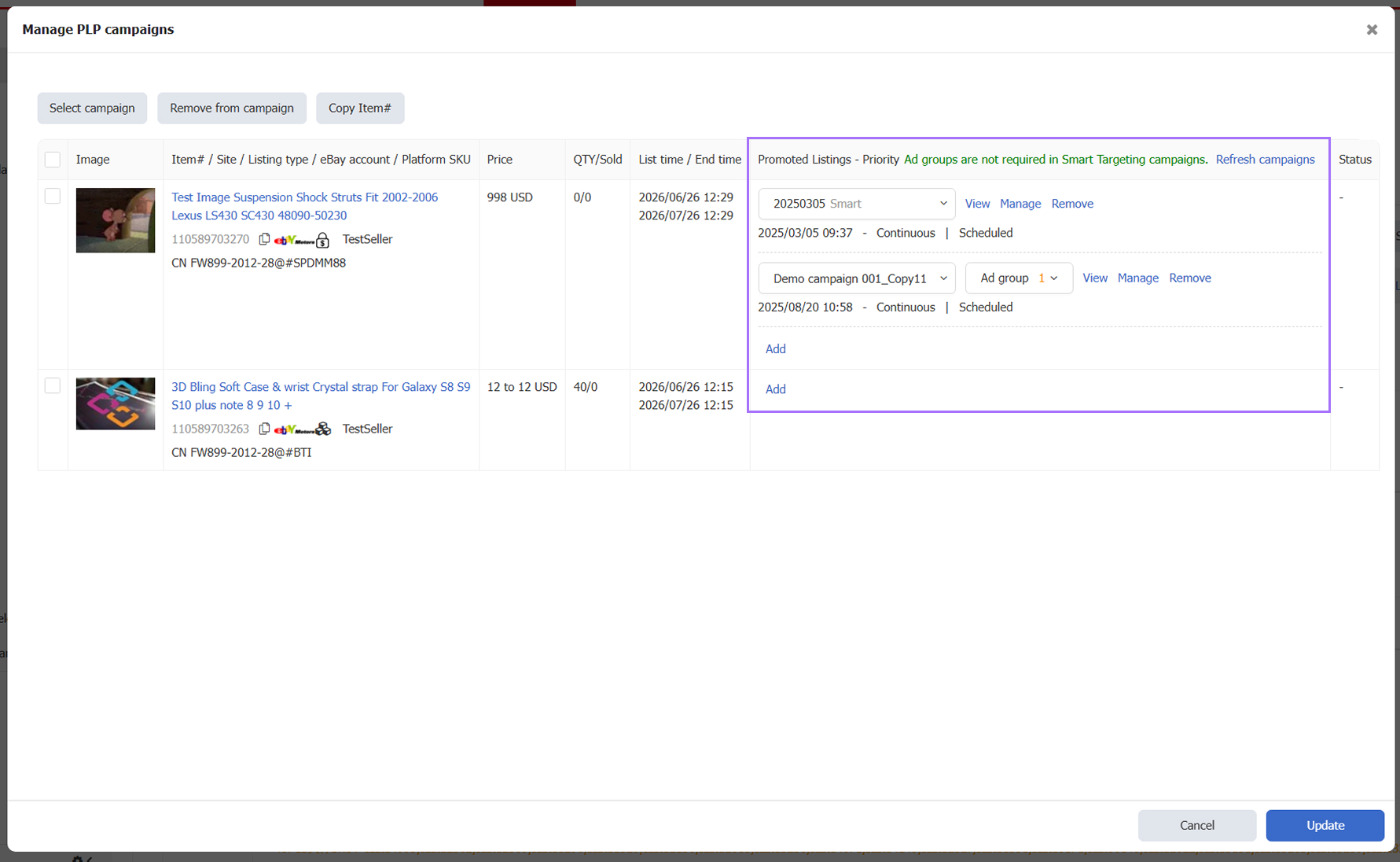
Step 3: Assign campaigns for each listing.
- Manual targeting campaigns require selecting ad groups (multi-select supported)
- Smart targeting campaigns do not require ad group selection
Existing Campaign Behavior
- Existing campaigns will be automatically displayed when opening the dialog
- Selecting 【-- Select --】 will remove the campaign
- Switching to another campaign will replace the current assignment (remove old and assign new)
This article is also available in the following languages:
 Chinese Simplified
 Chinese Traditional